How to view Transaction or Job History for an Item
The procedure is as follows:
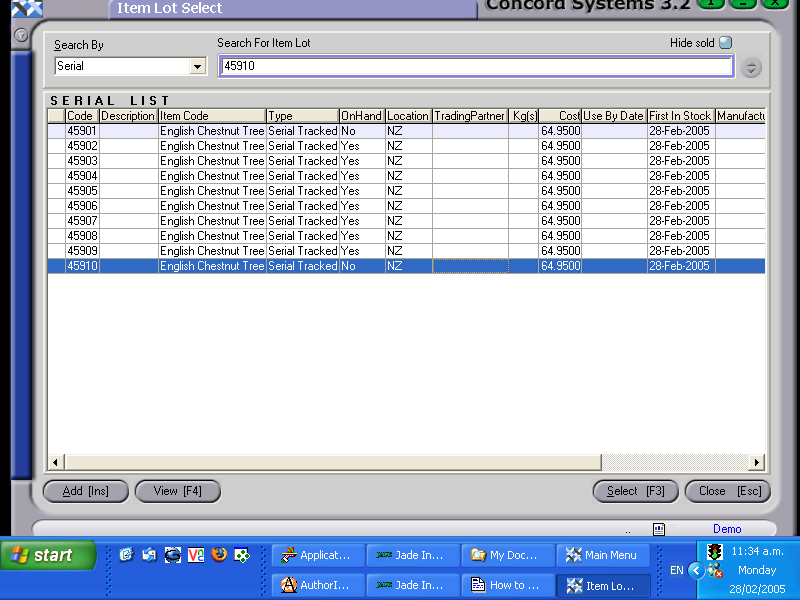
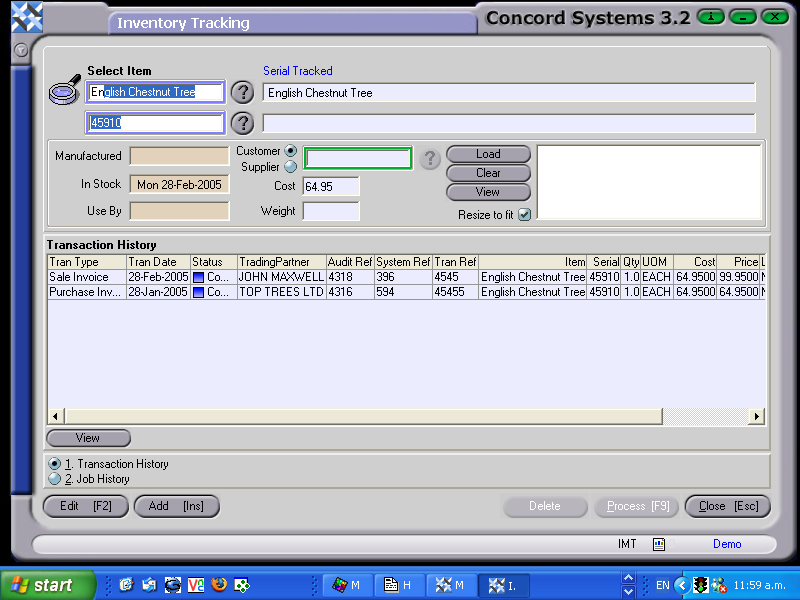
Select Item. Enter the item name, or use the [up/down arrow keys], or click on the ? icon for the Itel Lot List. Click and select [F3].
The second selection is the actual serial number of the item chosen. If known enter the serial number, or click on the ? icon for the list of available serial numbers for an item. Click to highlight and Select [F3].
.At the bottom left hand of the screen, click to view either "Transaction History" or "Job History".
Transactions will then be available to select for Viewing. Click to highlight on the appropriate transaction and click on "View".
This will take the user to the original source transaction. If the status of the transaction is "Complete", then editing will not be possible. If the transaction status is showing as "Planned" or "Confirmed" then the Edit [F2] function may be applied, and the transaction may be altered as required.