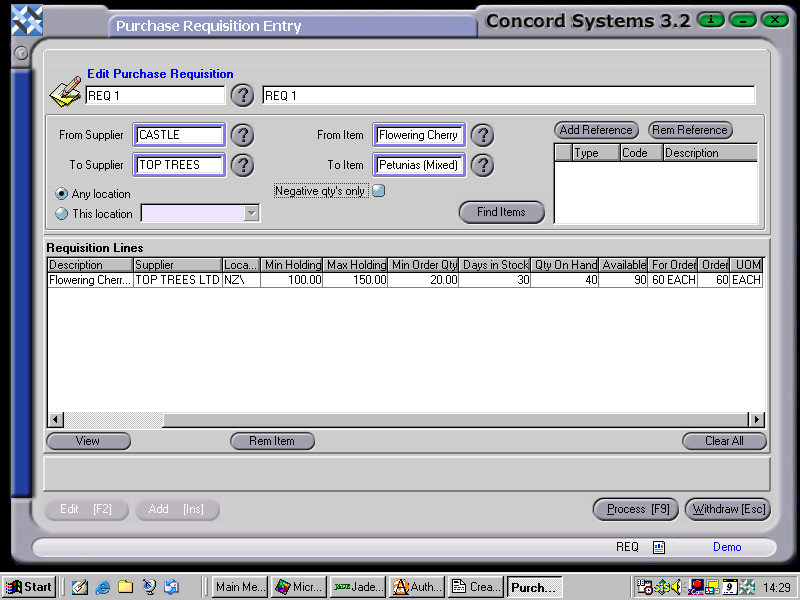
The procedure for creating a Purchase Requisition Entry <REQ>, is as follows:
Add [INS]
Enter the reference number in the "Create Purchase Requisition" box.
Save [F9].
Enter the following details:
From Supplier/To Supplier. A range of suppliers or an individual supplier may be entered (by selecting the same supplier in the From/To boxes). Either enter the names of the Suppliers, use the [up/down arrow keys], or click on the ? button for the Supplier List, click to highlight and Select [F3].
NB. Entering Suppliers within these boxes will only be effective if the item has a Default Supplier selected (within the Item Maintenance <IM> function). Leaving the From Supplier/To Supplier boxes blank will widen the search parameters.
From Item/To Item. A range of items or one only may be entered (by selecting the same item in the From/To boxes). Either enter the item code, use the [up/down arrow keys] or click on the ? button for the Item List, then click to highlight and Select [F3].
Any Location. All Locations will be included within the Search.
This Location. Use the down arrow key to select appropriate location.
Negative Quantities only. Turn this option either on or off. If a minimum quantity for an item has not been set up within the Item Maintenance <IM> function, then a negative quantity of stock on hand will automatically be replenished to zero.
5. Find Items. Click on this button to begin the search process.
A list will then be produced, based upon the data knowledge for an item of the recommended purchase quantities from each supplier.
By right clicking on the column headings and selecting "Columns" the user is able to turn on or off the columns required to be displayed.
The Column "Supplier" is required to be completed. If it is incomplete the Purchase Requisition is unable to be processed.
By clicking on an item line on the requisition and requesting:
View [F4]. The user is directed to the Item Maintenance <IM> screen for that item.
Rem - (Remove). This will remove the item line from the requisition.
Clear All . All Item Lines will be removed.
6. Process [F9]. The options are:
Process, The Purchase requisition will be confirmed and completed and will unable to be edited. Also, a Purchase Order for the Supplier (or each supplier if there were more than one on the Purchase Requisition) will be automatically generated. The Purchase Order will be generated as a Confirmed but not Completed transaction, so that it is still able to be edited.
Hold. The Purchase Requisition will remain 'Planned' and is able to be edited
Delete.
The User may also elect to print the Purchase Requisition .