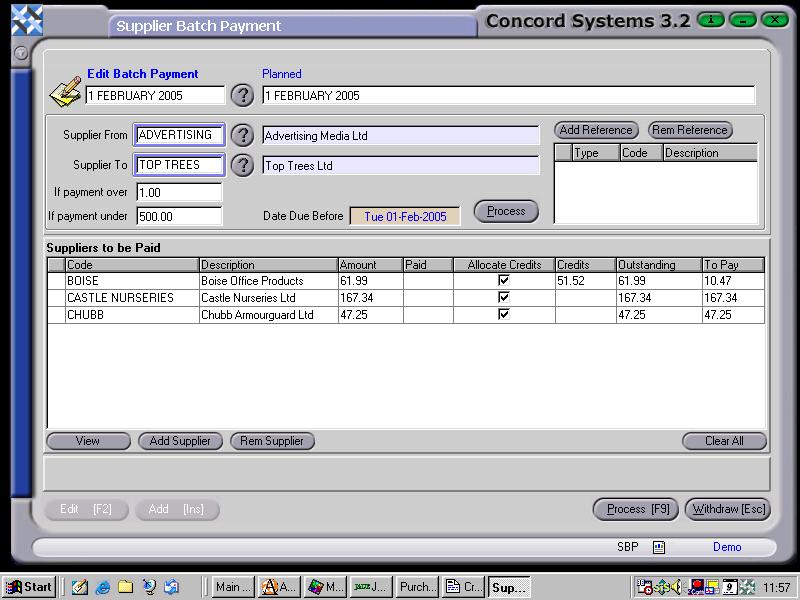
The procedure for creating a new Supplier Batch Payment is as follows:
Add [INS].
Enter the Batch Reference and Description.
Save [F9].
Supplier From/Supplier To. Either enter the supplier code, use the [up/down arrow keys], or click on the ? button for the Supplier List, click to highlight and Select [F3]. (If only selecting an individual supplier, ensure the From/To Supplier is the same. If you leave a Supplier box blank, Concord will assume all suppliers have been selected).
If Payment Over/If Payment Under. Select the amounts to be included in the batch. Fill in both boxes for an amount range in between, or enter details in one box only.
Date Due Before. Enter a date that the invoices are due before, so the correct invoices are selected, and not all invoices up to the current date. Change the day by using the [up/down arrow keys] or the month, by using the [up/down arrow keys + shift key].
Process. This will generate the proposed batch within the parameters chosen in the previous steps.
The "Suppliers to be Paid" table is then generated as follows:
Code and Description of the Supplier.
Amount. The proposed amount of the payment.
Paid.
Allocate Credits. This option may be turned on or off. This may then effect the total of the batch payment.
Credits. If the 'allocate credit' icon is turned on, credits included within the batch will be displayed.
Outstanding. This is the total amount currently outstanding by the supplier.
To Pay. Calculated as the amount to be paid to the Supplier.
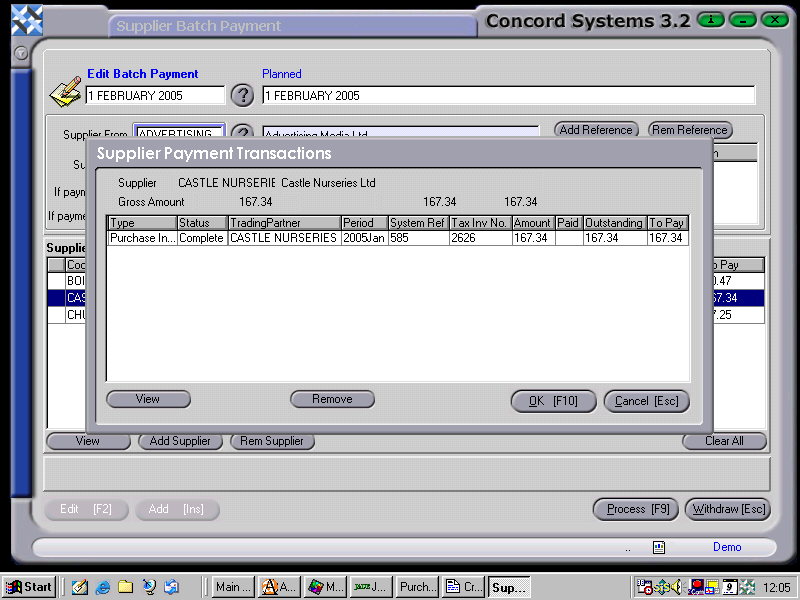
The amount to pay to the Supplier is the Total amount calculated by Concord. If it appears that the amount is not within the specified selected parameters, it may be the total of a number of invoices for that Supplier. By clicking on the View button, a schedule will appear of the individual invoices included in the total payment amount.
By clicking on any of these individual invoices, the User is able to:
View. This is the source Purchase Invoice <PI> transaction.
Remove. Allows the removal of an invoice that should not be included in the batch payment.
OK or Cancel.
9. Process [F9]. The options are as follows:
Process. The Batch will be Completed and Confirmed and will be unable to be edited. Supplier Payment transactions and journals will be automatically created, as will Supplier Transaction allocations.
Hold. The batch will be held as "Planned", and is able to be edited. No Journals or transactions will be completed.
Delete. The batch will be deleted.
At the Processing stage there exists the option to produce a cheque run, or a summary for On-Line Banking Payments. A Bank Account must be selected by clicking in the green highlighted box and using the [up/down arrow keys] to select. Choose from the options: