


|
|
|
|
|
The method for completing a Supplier transaction allocation is as follows:
A list will appear of the confirmed and completed transactions for that Supplier.
Payments and Credits are shaded in red, and Invoices in blue.
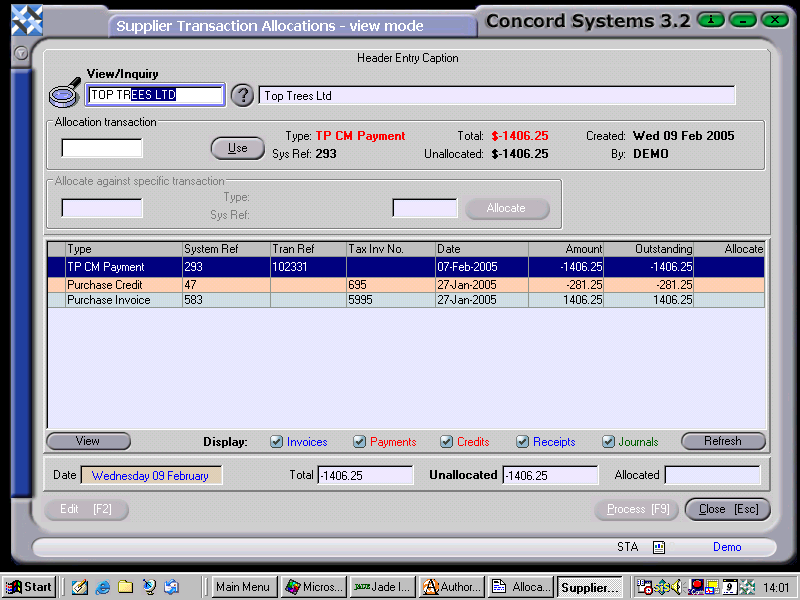
2. Click on the line of the payment to be allocated, then click on the box labeled USE.
3. Click on the Purchase Invoice line to be allocated against the payment. This amount will now appear in the box next to the word Allocate.
4. Click on Allocate.
5. The allocation is now ready for processing as long as there is a zero amount in the Unallocated box near the bottom of the screen. (see below).
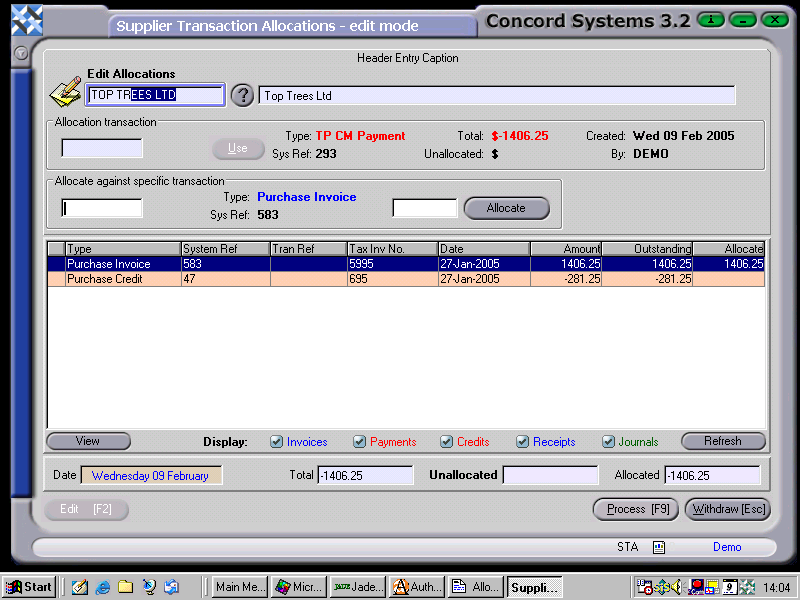
6. [F9] Process.
If a payment is being allocated to several purchase invoices, the procedure is the same, apart from repeating steps 3 and 4 as above, with the various sales invoices until the Unallocated box becomes nil.
To cancel the allocation, click on the Withdraw [Esc] button at any stage of this procedure to delete the planned transactions.