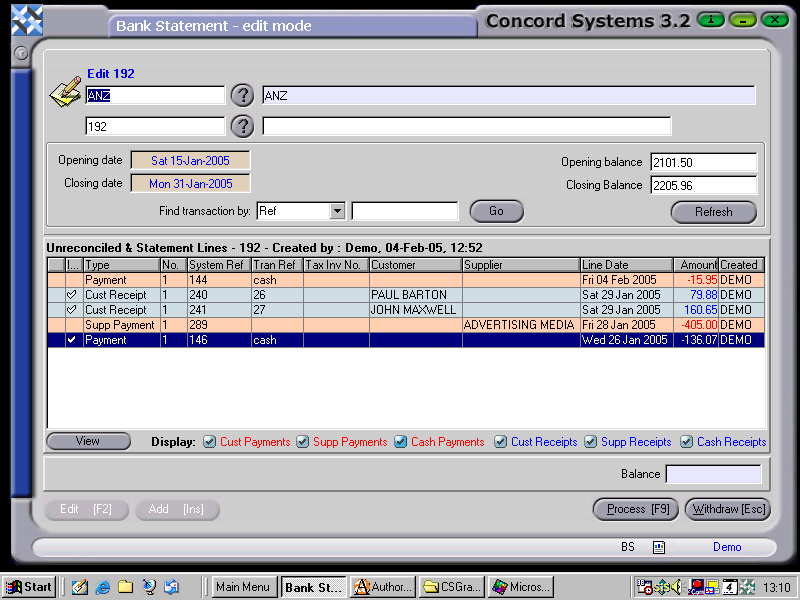
To create a new Bank Statement page, the procedure is as follows:
Select Bank Account (if the organisation has more than one). Either enter the name, or click on the ? button and highlight to select [F3], or use the [up/down arrow keys] on the keyboard.
To add a new statement, in the second box down, click Add [INS] and type in the page number of the Bank Statement and Save [F9].
Complete the Opening Date and Closing Date (of the Bank Statement) boxes. The default date is usually the current date. To select the actual date required,
To change the day use the [up/down arrow keys].
To change the month, use the [up/down arrow keys + shift key].
Enter the Opening Balance and Closing Balance figures from the Bank Statement. The difference between the two is reflected in the balancing total at the bottom of the page.
To present transactions, double click on the required line. A tick will appear, indicating that the item has been presented. When all items from the bank statement have been presented, the balancing total at the bottom of the page should be zero. This indicates that all transactions have been accounted for.
6. Click the Process [F9] button and can elect whether to:
Process. The Bank Statement is confirmed and completed and can no longer be edited.
Hold.The Bank Statement is confirmed but not completed, and is able to be further edited.