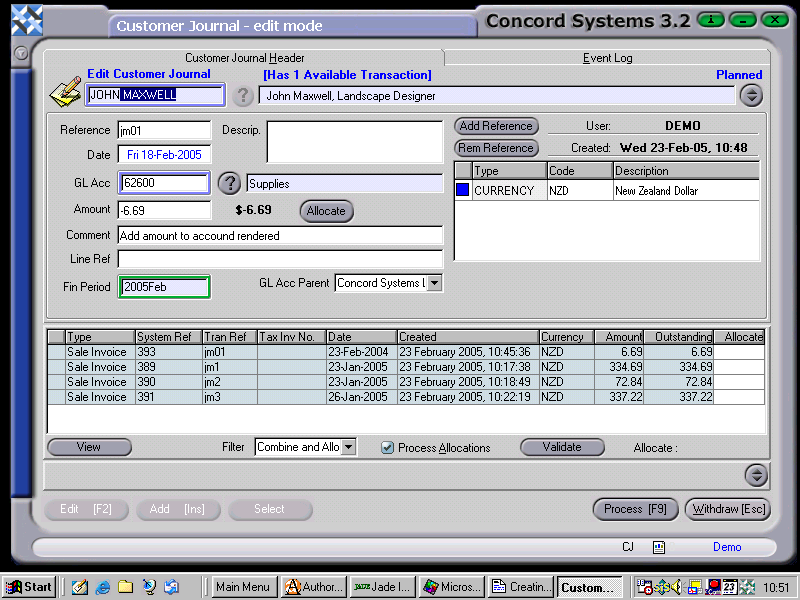
To complete a Customer Journal, the procedure is as follows:
Select a Customer, either by entering the name, or using the ? icon to highlight the relevant customer, then Select [F3].
Add [INS].
Reference. Enter as required.
Date. This will default to the current date. To change the day, use the [up/down arrow keys]. To change the month use the [up/down arrow keys + shift key].
GL Account. The account to be debited or credited. Enter the relevant account number, or use the ? icon to select [F3] from the General Ledger Account List.
NB: The account number for Accounts Receivable should not be used, as during the completion of the automatic journal entry the other side of the entry will also be to Accounts Receivable, therefore creating a nil effect.
Amount. Enter in the value of the transaction. Debits are reflected as positive, and credits as a minus.
For example, To increase the customer balance – enter a credit.
To decrease the customer balance – enter a debit
Comment. Enter if required
Line Ref. Enter if a further description is required.
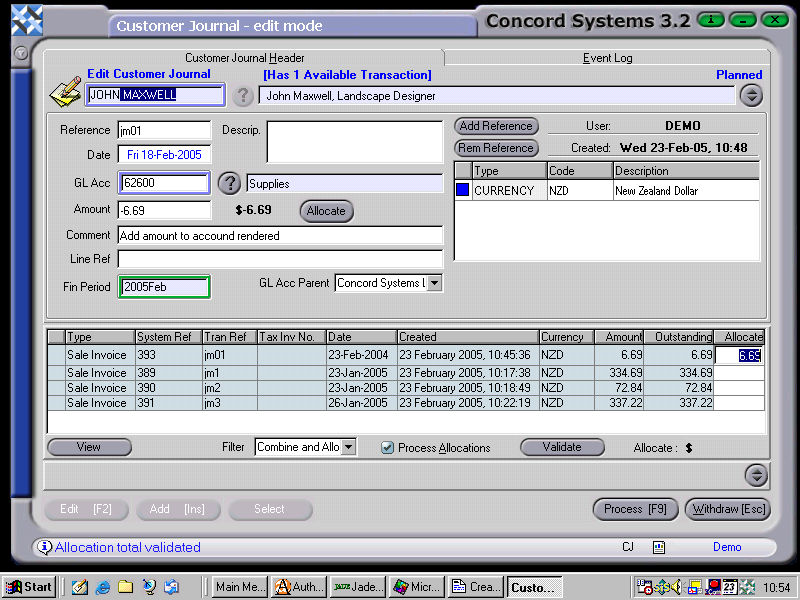
Allocations. To allocate the journal entry to an existing transaction, either
Double click on the relevant transaction, or
Click on the Allocate box on the line required, and type in the amount.
If a debit transaction is being entered, then a debit must be allocated against a credit transaction on the allocation list.
Likewise, if a Credit transactions being entered, then a credit must be allocated against a debit transaction on the allocation list.
Click on the Validate button, to ensure the allocations balance.
Ensure the Process Allocation button is selected.
10. Process [F9] and select from the following options:
Process and Complete Immediately. The transaction will be processed as confirmed and completed and will be unable to be edited. The automatic journal entry will also be processed as follows:
Debit General Ledger Account
Credit Accounts Receivable
Process, but do not Complete Immediately. The transaction will be processed as confirmed, and will be unable to be edited unless a version of the transaction is used. The automatic journal entry will not be processed.
Hold. The transaction will remain in a 'Planned' state and will be able to be edited.
Delete.
Auto Allocate. This must be selected before an allocation can be processed.