


|
|
|
|
|
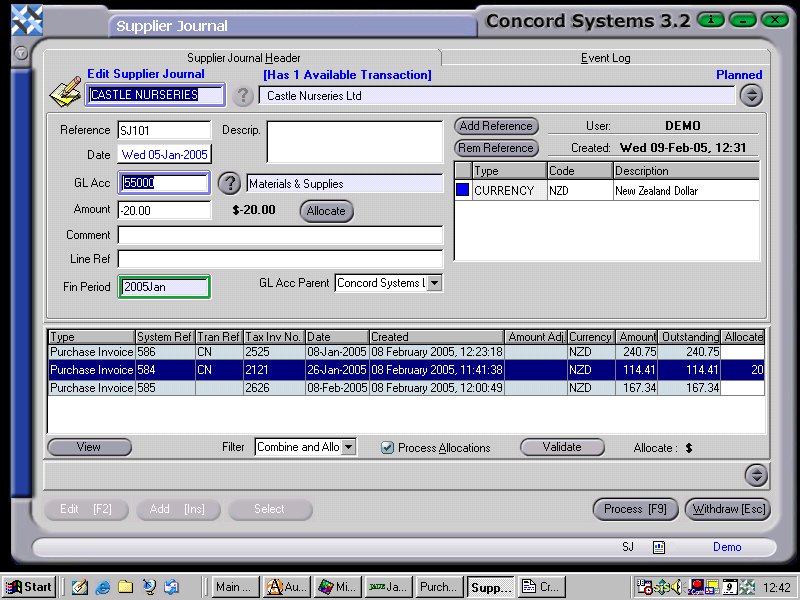
To complete a Supplier Journal, the procedure is as follows:
NB: The account number for Accounts Payable should not be used, as during the completion of the automatic journal entry the other side of the entry will also be to Accounts Payable, therefore creating a nil effect.
Amount. Enter in the value of the transaction. Debits are reflected as positive, and credits as a negative. For example, To increase the supplier balance – enter a debit (positive).
To decrease the supplier balance – enter a credit (negative).
If a debit transaction is being entered, then a debit must be allocated against a credit transaction on the allocation list.
Likewise, if a Credit transactionis being entered, then a credit must be allocated against a debit transaction on the allocation list.
If the Process Immediately button is selected, the transaction will be unable to be edited further.
Before processing allocations, ensure the Auto Allocate button is selected.
Upon processing of the Supplier Journal, the following journal entry will be completed. (using the above screen as an example).
Debit Accounts Payable and Creditors Control Account (PCU).
Credit Materials and Supplies