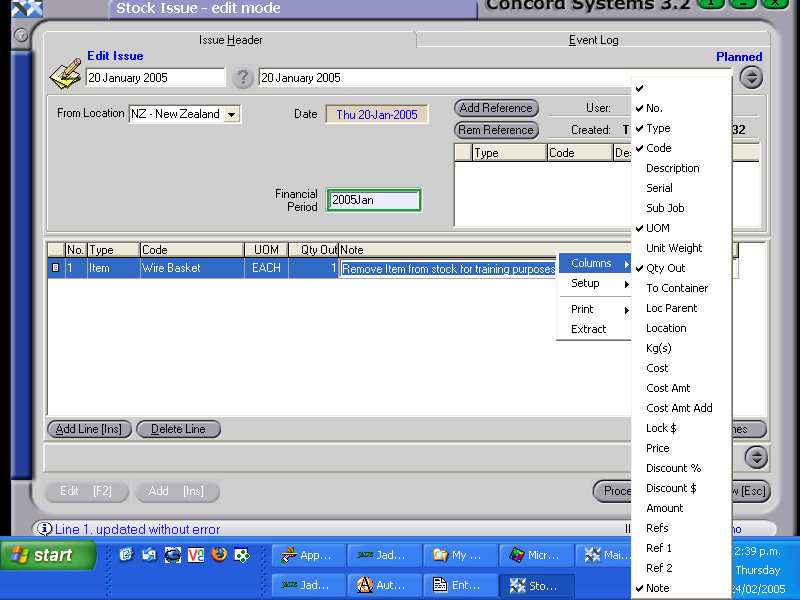
The procedure for entering an Item Issue is as follows:
Add [INS]
Create a Reference. Type in the reference details of the issue.
Save [F9]
Date. To change the day, use the [up/down arrow keys] .To change the month, use the or [up/down arrow keys + shift key] on the keyboard.
Location. Check the location that the stock is being issued from. To change if necessary, click on the down arrow and click to highlight.
Add Line [INS]
Enter the details of the issue. (These instructions are for the minimum amount of information required. If further information is required to be entered, right click on the table headings, select columns, then click on the appropriate heading to either add to or delete from your table headings).
Type. Use the down arrow key to select 'Item'.
Code - Type in the name of the stock item, or alternatively use the [up/down arrow keys + shift key> to select.
Unit of Measure - This column should be kept turned on, but once the item has been selected, the unit of measure for that item will automatically appear.
Quantity Out - Enter the number of items to be issued. (Based on the unit of measure for that item).
Note - Enter if required.
8. Process [F9] and select one of the following options:
Process and Complete immediately - the issue will not be able to be edited or deleted, and the following journal will be be automatically completed:
Debit Closing Stock
Credit Stock on Hand
Process but do not Complete immediately -The issue will be unable to be edited, but a new version will be created. No Journal will be completed.
Hold - the issue will be held in a 'Planned' state and may be edited.
Delete - the issue will be deleted.
In addition to the above options, there is an option to print an Item Issue. This will send the issue to the stores, where the item will be used to create another stock item, and can be linked to the Job Item Issue <JII> function.