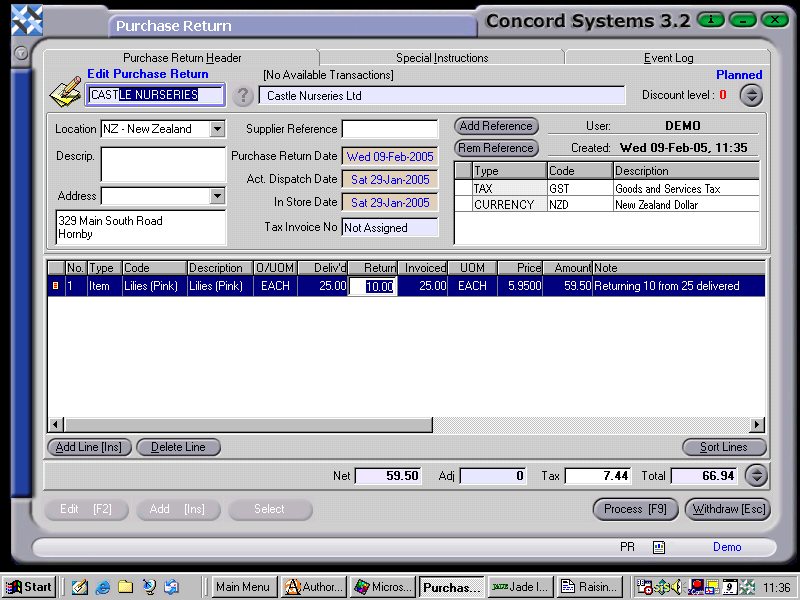
Raising a Purchase Return from a Purchase Delivery
A Purchase Return transaction can be raised from an existing Purchase Delivery, which has already been received from the supplier.
The procedure is as follows:
Select Supplier. Enter the Supplier name, or click on the ? button for the Supplier List, then click to highlight and Select [F3].
Supplier Reference. This must be completed.
Click on the "Select" button at the bottom of the screen. The list of Purchase Delivery transactions that are available for the Purchase Return to be raised from, will appear.
Click to highlight on the appropriate Purchase Delivery and Select [F3].
This will automatically recall the items which have been sent and receipted into stock. If there are any differences in quantity between the items ordered and the items delivered, click on the box in the "Returned" column and enter the correct quantity.
Further lines may also be Added [INS] for items not originally on the Purchase Delivery and details entered as required.
Location. Ensure the correct location is being used. Click on the down arrow key to change if necessary.
Purchase Return Date, Actual Dispatch Date, In Store Date. To change if required, use the [up/down arrow keys] to change the day, and the [up/down arrow keys + shift key] to change the month.
7. Process [F9]
If all items on the Purchase Return are being returned as per the Purchase Delivery, complete immediately, and "Close Source" may be selected, (being the original Purchase Delivery transaction). This will complete the Purchase Delivery, and no further documentation will be able to be raised from it.
Hold. The Purchase Return will remain in a "Planned" state and is able to be edited.
Process, but do not complete immediately. This will allow a further version of the transaction, but the original transaction will stay Confirmed but not Completed, and another document such as a Purchase Credit will be able to be raised from it.