To enter a Sale Quote the procedure is as follows:
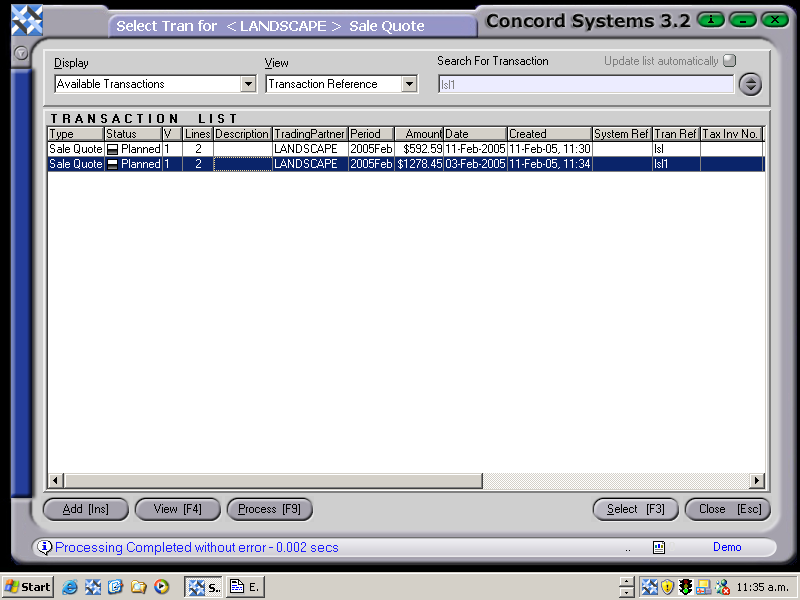
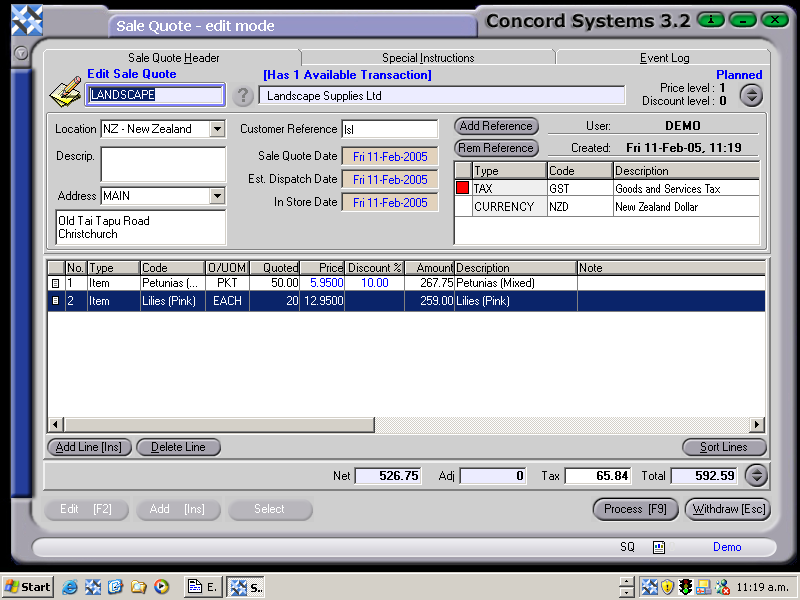
Select Customer. Enter the name of the Customer, or use the [up/down arrow keys] to locate, or, click on the ? for the Customer List, click to highlight and Select [F3].
Add [INS].
Customer Reference. Enter if Required.
Sale Quote Date, Estimated Dispatch Date, In Store Date. This will default to the current date. To change the day use the [up/down arrow keys]. To change the month, use the [up/down arrow keys+ shift key].
Add Line [INS], and enter the following details. (Listed are the minimum details required, to add further columns, right click on the column headings, select "Columns" and turn required columns on or off).
Code. Enter the product code, or use the [up/down arrow keys + shift key] to scroll and select.
Description. This will automatically appear when the Item Code is entered.
UOM. The Unit of Measure will automatically default to that of the Item Code. If the Item has more than one UOM, click on the down arrow key and select the alternative.
Quoted. Enter the quantity quoted on.
Price. Enter the quoted price per item.
Discount %. Enter if required. If a percentage is entered, this will be deducted off the quoted price per item to get the total amount of the quote.
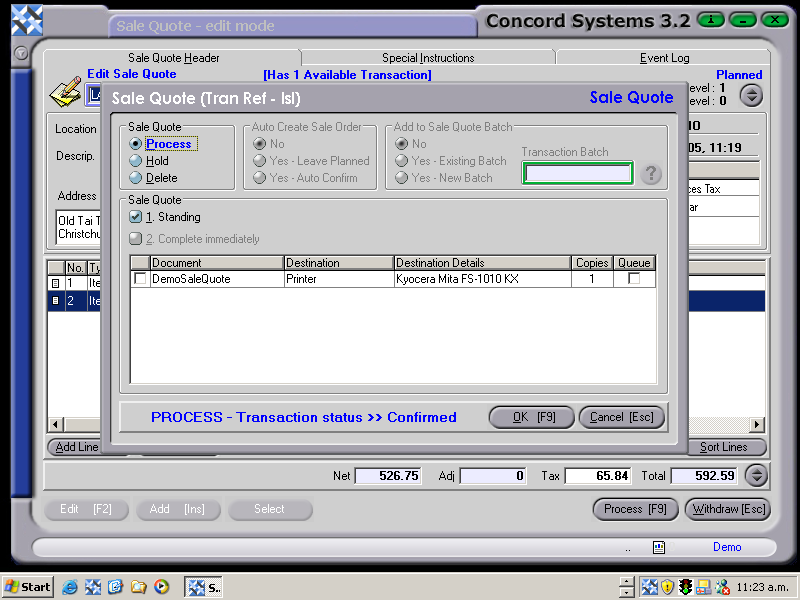
6. Process [F9]. Select from the following options.
Process. The Quote will be Confirmed and Completed, and will be unable to be edited. A Sale order will be able to be raised from it.
Hold. The Quote will remain in a Planned state and is able to be edited. No subsequent transaction (ie. a Sale Order) will be able to be raised from it.
Delete.
Standing option. If this option is selected, the quote for the item stands until further notice. If this option is not selected, the quote is a "one-off" special price.