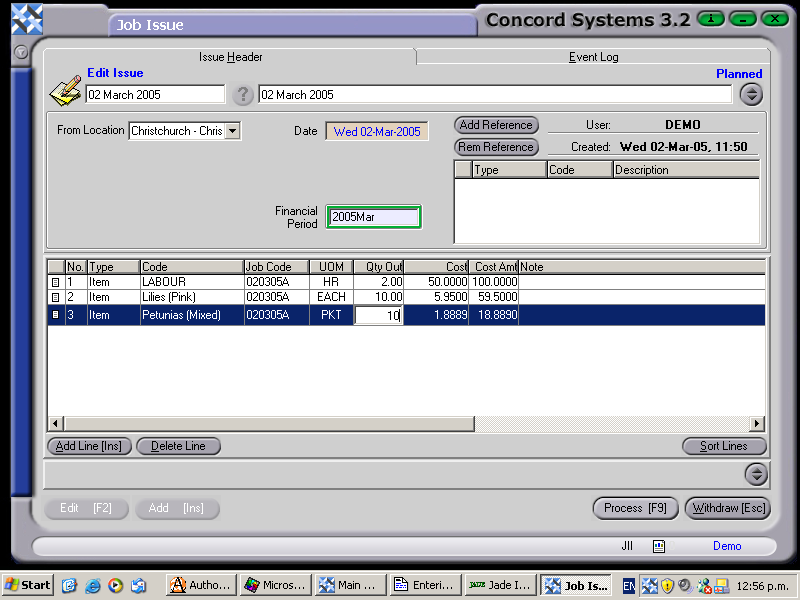
Transactions may be entered against a job in multiple issues or under one issue.
To enter a new job issue, the procedure is as follows:
Add [INS].
Create Issue. Enter the reference number or details of the issue in the "Create Issue" box. One of the most common reference numbers used would be the date.
Save [F9].
From Location. Click on the down arrow key to select the correct location of the issue.
Customer. Ensure the correct customer is used by clicking in the box and using the [up/down arrow keys] to select, or click on the ? button for the Customer List, click to highlight and select [F3].
Date. This defaults to the current date. To change the day, use the [up/down arrow keys]. To change the month,use the [up/down arrow keys + shift key].
Add Line [INS] and enter the following details (Below are the minimum details required. Right click on the Column headings, select "Columns" and turn headings on or off as required if further information needs to be entered).
Type. Click on the down arrow to select "Item". (The other option is "Comment" to enter non-issue dialogue).
Code. Enter the Code of the Item. These will have already been set up under the function "Item Maintenance <IM>". Use the [up/down arrow keys + shift key] to scroll and select the item code.
Job Code. Enter the Job code that the issue relates to. These will have already been set up under the function "Job Maintenance <JM>".
UOM. Unit of Measure will default to that relating to the Item Code set up under "Item Maintenance. If there is more than one Unit of Measure, click on the down arrow key to scroll and select.
Quantity Out. Enter the quantity being issued.
If time spent on a Job is the Item being issued, the Item's Unit of Measure will be expressed in Time, so the quantity entered will be expressed as a time measurement.
Cost. This will default to the cost of the item set up under Item Maintenance.
Price. A special price may be entered as required.
Amount. This will calculate the amount of the issue, based on the Cost x Quantity, or if a special price has been entered, the amount will be calculated based upon the Price x Quantity.
8. Process [F9]. The options are as follows:
Process, and Complete Immediately. The issue will be recorded against the job and will be unable to be edited.
Process and do not Complete Immediately. The issue will be recorded against the job, and will be able to be edited by creating a version of the transaction.
Hold. The issue will be recorded against the job in a planned state, and will be able to be edited.
Delete.
The job issue can also be viewed on the screen and printed.