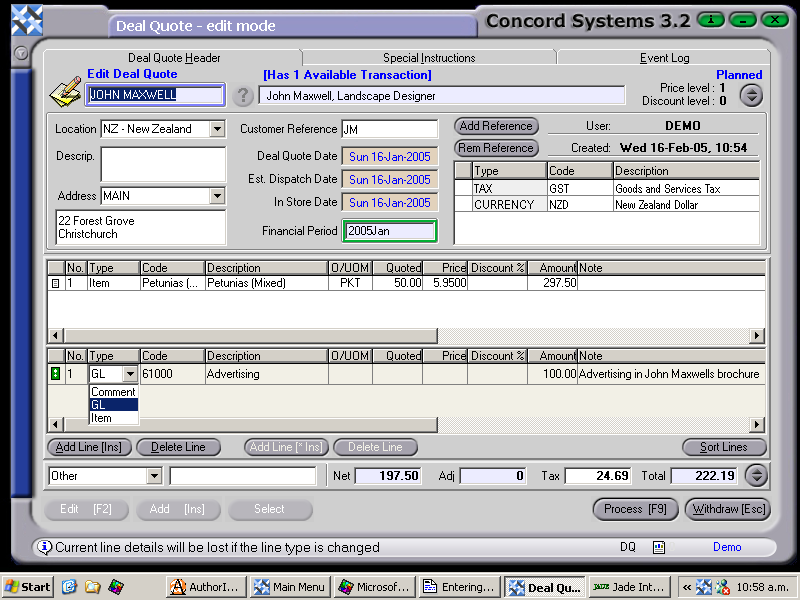
The procedure for entering a new Deal Quote is as follows:
Select Customer. Either, click on the ? button, click to select on the appropriate customer and Select [F3], or click in the "Select Customer" box and use the [up/down arrow keys].
Add [INS].
Location. Ensure the correct location is selected.
Customer Reference. Enter if required.
Order Reference. Enter if required.
Deal Quote Date, Estimated Despatch Date, In Store Date. Click on the boxes to change if required. To change the day use the [up/down arrow keys]. To change the month, use the [up/down arrow keys + shift key].
Enter the details of the quote. (By right clicking on the column titles, the list of available options appear. Click on the column titles required. If they are to be used during the transaction, they will be highlighted with a tick. Below are details for entering the minimum required information).
The Purchase Quote and the Sale Quote may be entered in any order. In the example below, the Sale Quote has been entered first.
Add Line [INS].
Type. Select using the down arrow button either
Comment. There is no monetary value.
General Ledger. Use for a non-stock item.
Item. Use for a stock item.
Code. Select the General Ledger account code, or the Item stock number, by using the [up/down arrow keys + shift key]. (Once an item code has been entered, the stock on hand totals are displayed at the bottom of the screen).
Unit of Measure. Ensure the correct UOM has been selected. It may be changed by using the [up/down arrow keys] to select.
Quoted. Enter the quantity quoted to the customer.
Price. Enter the Sale price. The default Sale Price for the customer will automatically appear.
Discount %. Enter if required, although the percentage will default to the level already created in the Customer Maintenance <CM> function.
To enter the second part of the Deal Quote, in this case being the Purchase, click on the right hand side Add [INS] button.
Enter the required details for the Purchase.
As the transaction is entered, the total at the bottom of the invoice will show the net amount payable.
After the details have been checked as correct, Process [F9] and select from the following options:
Process and Complete immediately. The Deal Quote will not be able to be edited.
Hold. The Deal Quote will be held in a 'Planned' state and is able to be edited.