


|
|
|
|
|
This allows the allocation of a receipt to a particular invoice/s. The advantage of allocating a receipt to the correct invoice or credit note is that the Debtors Trial Balance report will show the correct aging balances, and also, the remaining invoices owed will correspond with the customer's monthly statement.
After details of the receipt have been entered (using the guidelines set out in the section "Entering a Customer Receipt) the option is available to Allocate by clicking on the "Allocate" button, or to use the [shift F9] key. This will have the effect of automatically allocating the total of that receipt from the top line down.
(NB. The default setting in Concord for sorting the invoice table, is in Tax Invoice order).
This option is suitable for use if the Customer Receipt is paying all outstanding invoices shown on the table.
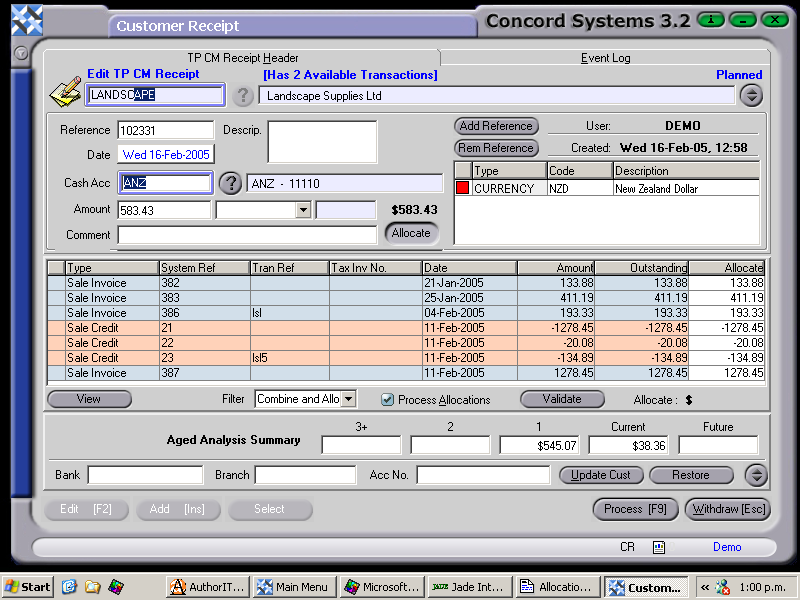
If not, and specific invoices are required to be selected for allocation, double click on the relevant lines. If the payment and the allocation totals match correctly, there will be a zero balance showing in the Allocate: $. If there is a discrepancy, the figure will appear and the allocation will be unable to be processed.
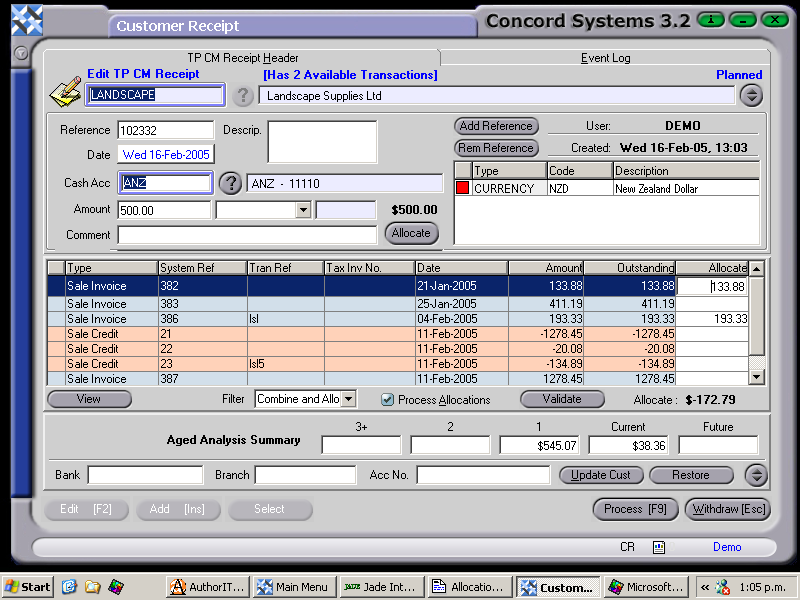
Once the transaction is ready to be processed [F9], it is recommended that the allocations be validated, by clicking on the Validate button. The Process Allocation button should be selected, otherwise the planned allocations will be deleted.
The receipt will now be reflected in the customer's balance owing, and the receipt amount and date is shown on the <CM> Customer Maintenance details screen. The receipt has also been sent directly to the bank statement <BS> function, enabling it to be reconciled.