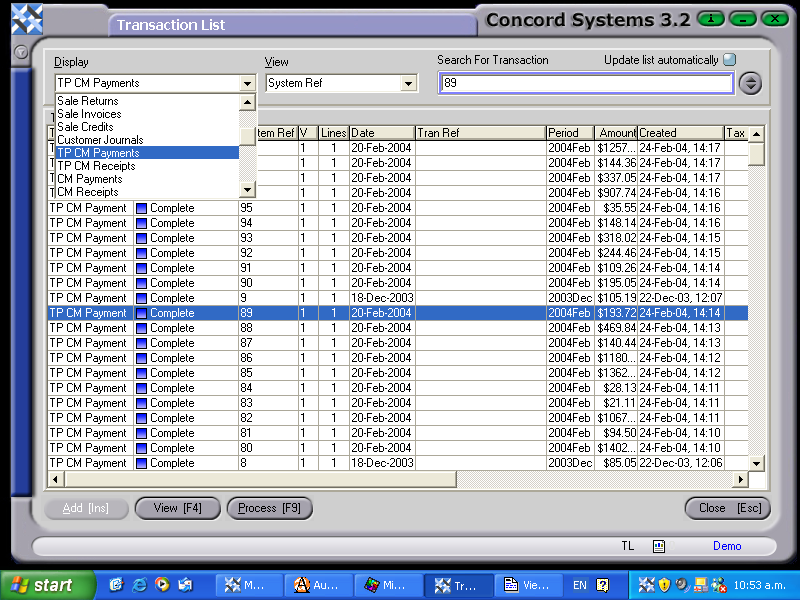
To use the Transaction List <TL> function as a viewing option, there are a number of ways to narrow the displayed search parameters, as demonstrated below.
By clicking on the down arrow of the Display box in the top left hand corner,options are available for selection such as transaction type, or transactions under the various Planned, Confirmed or Completed stages.
By clicking on the down arrow of the View box the search parameters can be narrowed even further, by clicking on either, Audit Ref, Systems Ref or Trans Ref.
If the Reference number of a particular transaction is already known, enter this in the SEARCH FOR TRANSACTION box. This will automatically recall the chosen transaction, but only if the conditions in the Display and View boxes are also correct.
(eg. It would be of no use selecting a completed sales invoice to view if the Display box was still selected at Planned).
Once the transaction to be viewed has been selected and highlighted, the source transaction may be viewed by either
Double clicking on the transaction, or
Clicking on View [F4].
A completed transaction may also be viewed in further detail, by
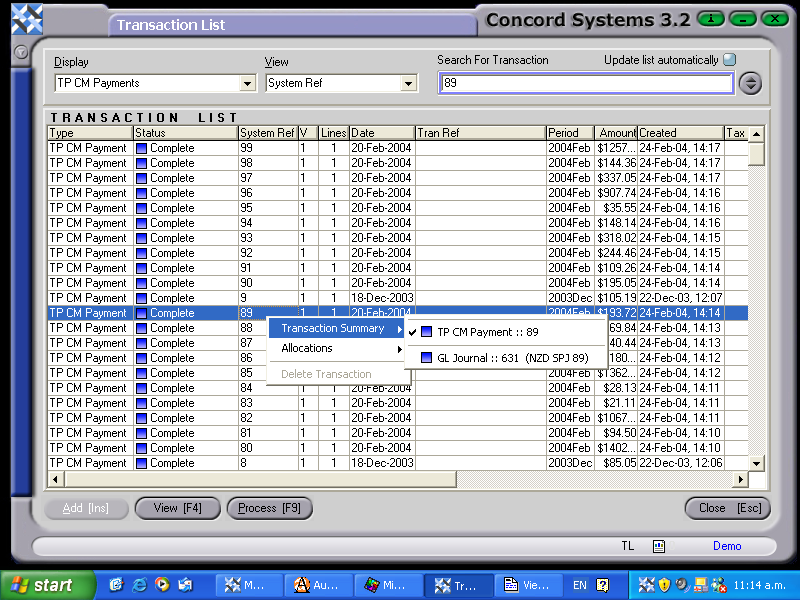
Right clicking on the transaction and selecting Transaction Summary. This displays the source transaction.
The Transaction Summary also gives the option to view the General Ledger Journal that has been completed automatically as part of the transaction completion process, by right clicking on it to highlight.
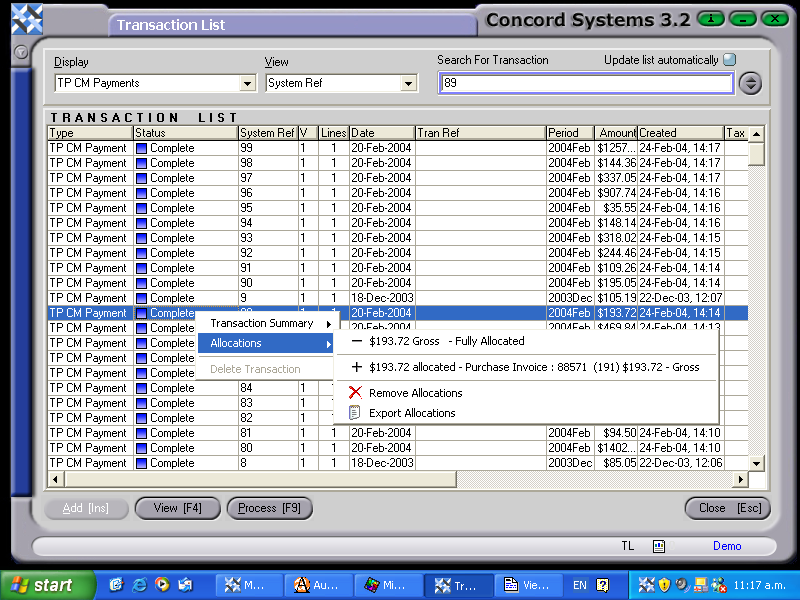
Right clicking on the highlighted transaction will, if applicable also display any allocations that have been made for that transaction.
Using a Filter to find a transaction for viewing
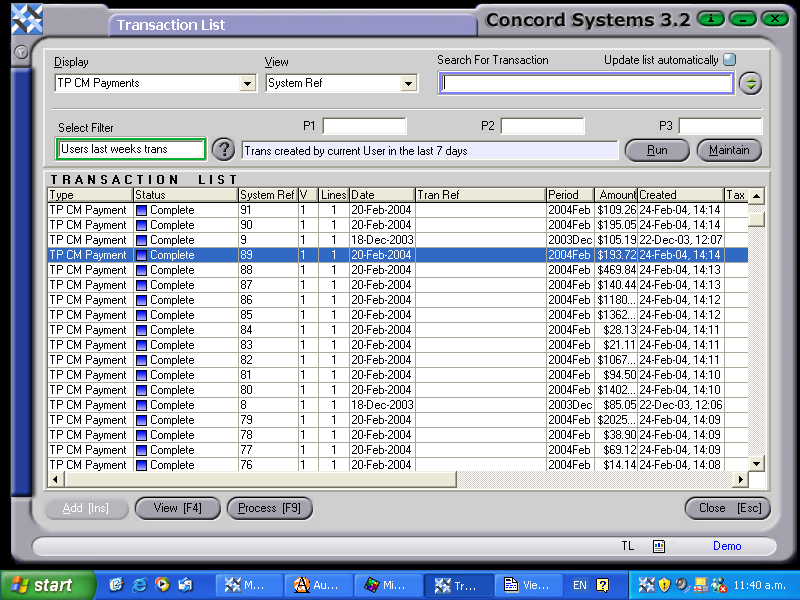
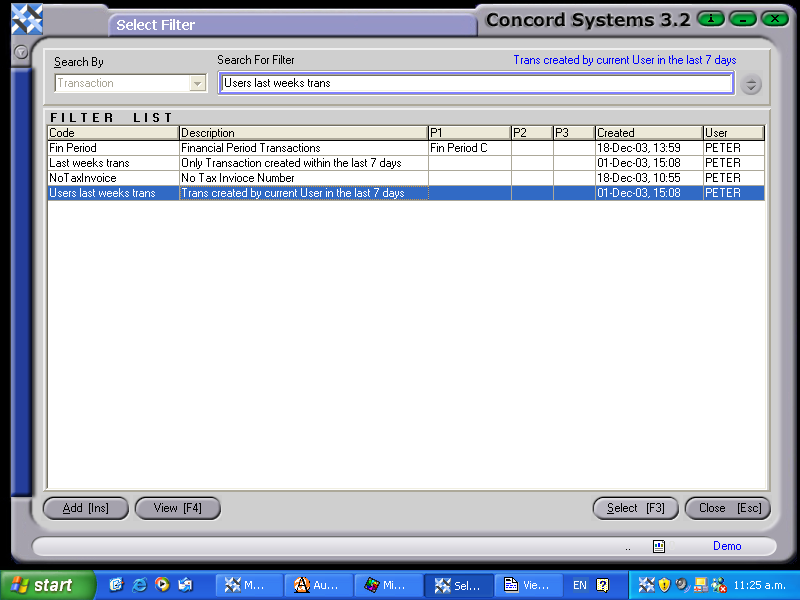
The search parameters for viewing a Transaction List can be narrowed further by selecting a Transaction Filter.
The procedure for this process is as follows:
Click on the up/down arrow icon to the right of the "Search for Transaction" box.
Select Filter by using the [up/down arrow keys] in the "Select Filter" box, or click on the ? icon to the right of this box, click on the filter list to highlight and Select [F3].
Run. Click on the "Run" icon.
The transactions relating to selected filter will be displayed.