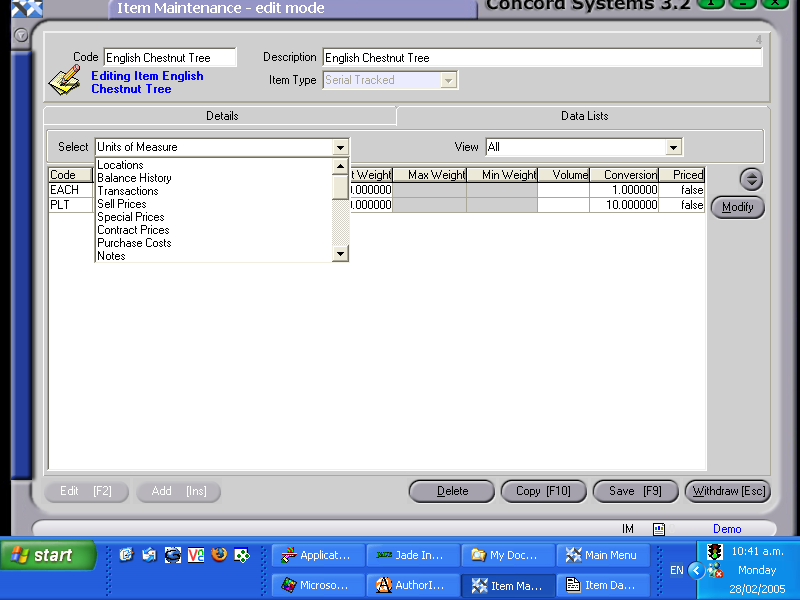
Within the function "Item Maintenance" <IM>, there is a facility to view and sometimes edit, further information associated with an item. This information is stored within "Data Lists", which is accessed by clicking on the header "Data Lists" once an item is selected.
Below is a list of the Data Lists available.
Locations - View only.
Balance History - View only.
Transactions - View, or edit an incompleted transaction once in the source document.
Click on a transaction to highlight.
Click on the Drill button to view the source document.
Edit if required.
Tracking - View only.
Graphics - View or
Click on a transaction to highlight.
Click on the Modify button.
Click on Load to import data from another file.
OK.
Notes - View or
Click on the Modify button.
Add [INS] a new note, Edit [F2] an existing note.
Save [F9].
BOM Components - View, or
Click on a transaction to highlight.
Modify.
The function <IBCM> Item BOM Component Maintenance will appear. Refer to this chapter for details of this function.
BOM Parents - View only.
Sell Prices - View, or
Click on the appropriate line to highlight.
Edit [F2].
Modify.
The function [ISPM] Item Sell Price Maintenance will appear. Refer to this chapter for details of this function.
Purchase Costs - View, or
Click on the appropriate line to highlight.
Edit [F2].
Modify.
The function <IPCM> Item Purchase Cost Maintenance will appear. Refer to this chapter for details of this function.
Units of Measure - View or
Click on the appropriate line to highlight.
Edit [F2].
Modify.
The function <IMQ> Item Quantity Maintenance will appear. Refer to the section "Adding a new Record", within this chapter.
The Location Quantity Holdings Maintenance screen will appear. The minimum or maximum quantities or minimum order quantities for a given location can be Added, Edited or Deleted as required.
Default Locations - View or
Click on the appropriate line to highlight.
Edit [F2].
Modify.
The Default Location Maintenance screen will appear. Add, Edit or Delete as required to the default (usual) location of the item. This is the geographical location as well as the whereabouts within the location (ie. the bin or aisle number).
Jobs - View only
This is the ability to view the activity for an item. This can only be viewed if there is an Inventory Link to the item set up within the Job Maintenance <JM> function.
References - View, or
Click on the appropriate line to highlight.
Edit [F2].
Modify.
The Group Collection Maintenance screen will appear. Add, Edit or Delete as required, by clicking on the down arrow to highlight the Group Type and entering the code. (These would have already been set up under the Group Maintenance function).
Aliases - (an alternative code that the item may also be known by). View or
Edit [F2].
Modify.
The function <IAM> Item Alias Maintenance will appear. Proceed as follows:
Code. Enter the item code that the item is also to be known as.
Type. Is the alias known to the Customer, Supplier or All in General (Standard)? Select accordingly.
Description. Enter a further long description if required.
Trading Partner. If the 'Type' selected is Customer or Supplier, the Trading Partner can be selected by entering the name into the box, or using the [up/down arrow keys] or clicking on the ? button to select [F3] from the Customer or Supplier List.
Process [F9].
An item may have more than one Alias. Edit [F2], or Add [INS] a further Alias.
Alternative Items - View or
Edit [F2].
Modify.
A simple item list will appear, which enables another 'like' item (if any) to be added or removed from the alternative item list.
Special Prices - View or
Click on the appropriate line to highlight
Edit [F2]
Modify
The function <ISM> Item Special Maintenance will appear. Refer to this chapter for further details.