|
|
|
|
|


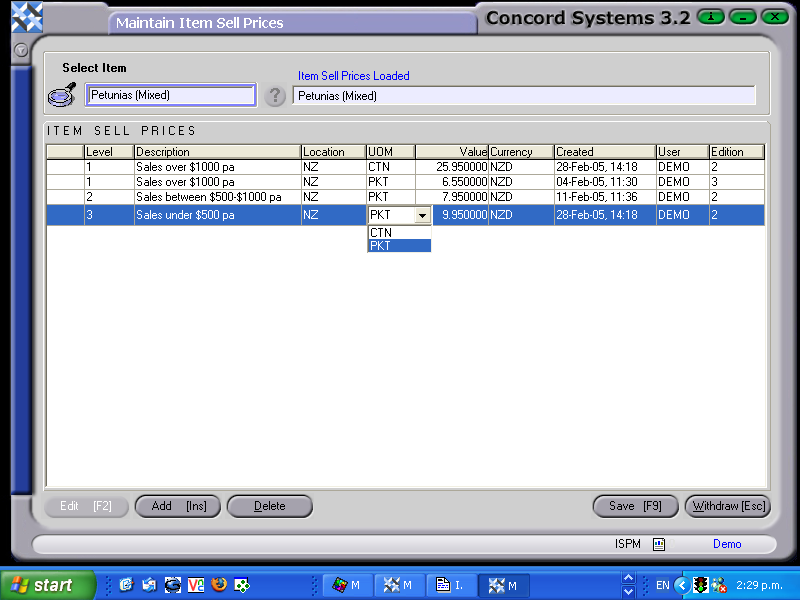
Item Special Price Maintenance <ISPM>
The method for calculating the Sell Price of an item is determined when the Item is added to Concord within the Item Maintenance <IM> function, using the heading “Costing”, and can be one of the following:
- Use Company Default. This is the formula set up for the user.
- Standard Cost. This is a set sell price, which is determined by the user.
- Average Cost. This cannot be changed by the user unless, other than the initial set up of a cost for a new item, thereafter, Concord automatically calculates the cost, based on Purchase Invoices received.
- Last Cost. Currently not being used by Concord.
- FIFO. Currently not being used by Concord.
The procedure for editing or adding a sell price is as follows:
- Select item by either typing in the name and using your up or down arrows on the keyboard.
 Edit [F2]
- To add a new sell price, click Add [INS]
- To Edit an existing Sell price, click on the appropriate line to highlight, and amend boxes listed below,
- Level. Different levels of Sell Prices may be created. Generally, when the level gets higher, the sell price gets cheaper.
The levels can be linked back to the customer, through the Customer Maintenance <CM> screen (in the “Financials” section).
- Location. Click on the down arrow button to view the options for Locations which would already have been set up under Group Maintenance <GM>.
Concord allows different sell prices for different locations.
- UOM. Click on the down arrow button to view the options for Unit of Measure, which would already have been set up under Item Maintenance <IM>.
Concord allows the entry of sell price for different units of measure for the same product.
- Value. Type in the correct price. (usually GST exclusive).
- Level. Different levels of Sell Prices may be created. Generally, when the level gets higher, the sell price gets cheaper.
5. Save [F9].