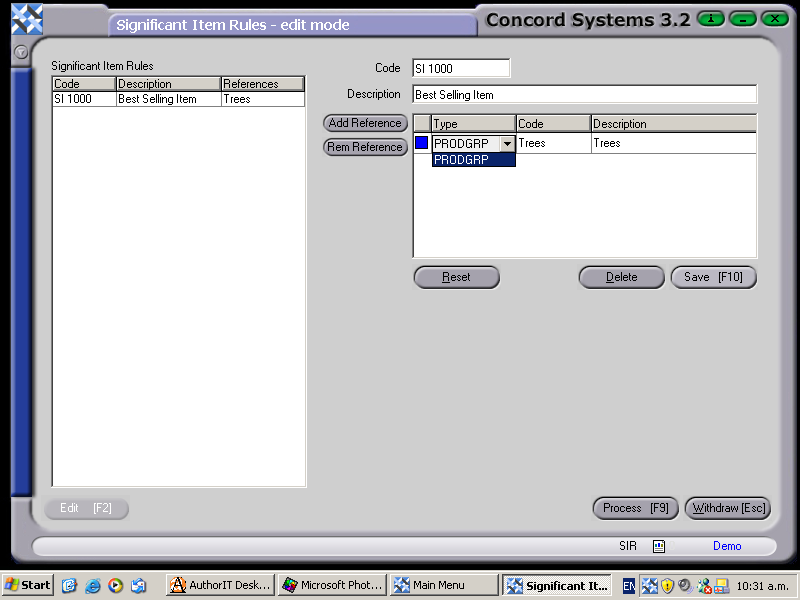
To create a new Significant Item category (rule), the procedure is as follows:
Edit [F2]
Code. Enter a code for the Item Rule. It can be alpha or numeric.
Description. Enter a description for the code.
Click on the Add Reference button. (If no references are selected, Concord will assume that all Items are significant and will flag them as such).
Type. Click on the down arrow key to select Type - either Product Group or Item Category.
Code. Select the Code relating to the Type selected by using the [up/down arrow keys + shift key]. (These would already have been set up under the function Group Maintenance <GM>.
Description. This automatically appears, relating to the code selected.
Save [F10].
Process [F9] This is the Process where the Items that subscribe to the Item Rule which has just been created, are flagged with an icon, able to be viewed within Item Maintenance.
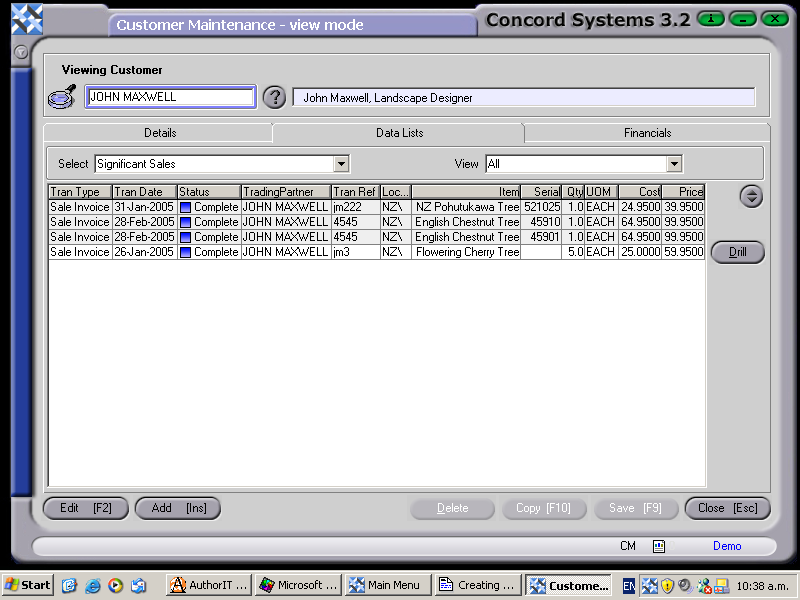
Scan Customer Sales Now? - Yes or No. This procedure will create the data which can be viewed under the Customer Maintenance <CM> function, Data Lists / Significant Sales (demonstrated in the screenshot below).