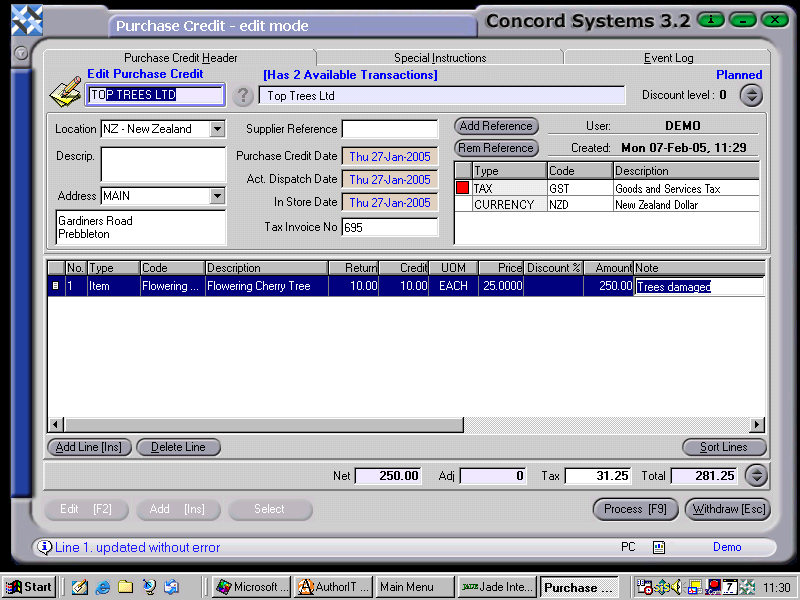
The procedure for entering a Purchase Credit is as follows:
Select the Suppler. Either type in the name, or click on the ? button to bring up the Supplier List. Click on the relevant supplier to highlight, then Select [F3]
Add [INS]
Location – If stock is being returned to the supplier on the purchase credit, ensure that the location is correctly selected, by clicking on the down arrow button to select.
Description – Enter if required.
Address – If different to the default address, click on the down arrow and select to change as required.
Supplier Reference – Enter if required.
Purchase Credit Date – Will default to actual date, use the [up/down arrow keys] or the [up/down arrow keys + shift key], to change.
Act. Dispatch Date and In Store Date – as above.
Tax Invoice No. – Must be entered.
Reference Table – Ensure that the references for Currency and Tax are entered.
(If there is no data available, for either, the relevant details must be entered through the Supplier Maintenance <SM> screen – Data Lists).
Once details have been entered, Process, using the following options
Process by completing immediately. The invoice will be completed and cannot be edited. The automatic journal will be completed.
Debit Accounts Payable
Credit GST
Credit Purchases
Debit Closing Stock
Credit Stock on Hand
Hold and do not complete immediately. No journals will be completed and the invoice is able to be edited.