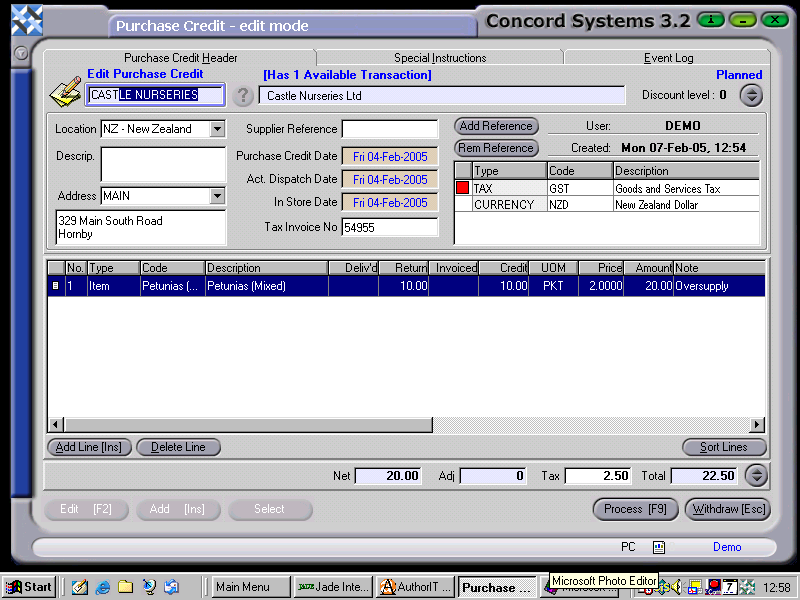
Select the Suppler. Either type in the name, or click on the ? button to bring up the Supplier List. Click on the relevant supplier to highlight, then Select [F3]
Add Line [INS].
Type – Ensure this is set to “Item”, by clicking on the down arrow in the Type box, and selecting.
Code – This is number/title of the stock item. Either type it in, or use the [up/down arrow keys + shift key] on the keyboard to select. The Stock on Hand amount and the value of the item will appear at the bottom of the screen, for your information.
O/UOM – Order/Unit of Measure will automatically appear once the stock item has been entered.
As much further information as required can be entered, relating to the details found on the Purchase Credit, (although the headings available for input are dependent on the configuration of the Control File – see section on Control File Maintenance <CFM>), but the following sections must be completed.
Credit – The quantity of stock being returned.
Price – Ensure the price per unit shown on the Purchase Credit is entered correctly into Concord.
When all details from the Purchase Credit have been entered correctly, then proceed to process [F9], and elect to either,
Process, by completing immediately. The credit will be completed and confirmed and cannot be edited. The automatic journals will also be completed.
Debit Accounts Payable (Creditors)
Credit Purchases
Credit GST
Debit Closing Stock
Credit Stock on Hand
Hold and do not complete immediately. No journals will be completed and the credit is able to be edited.